Getting started
In the public beta, ModOnda runs in your browser: open the live workbench and there is nothing to install. The command line, the Python package and the VS Code extension are not published during the beta; their pages describe them for reference.
ModOnda was called Diokle until 25 October 2026, and DAEdalus before that. The modonda command, the Python modonda package and the ModOnda Modelica library use the new name; scripts that call diokle or daedalus need updating.
The live workbench
Open modonda.com. The page
loads the bundled ModOnda library first, then the Modelica Standard Library 4.1.0 in the
background (about 2.6 MB, unpacked in the browser).
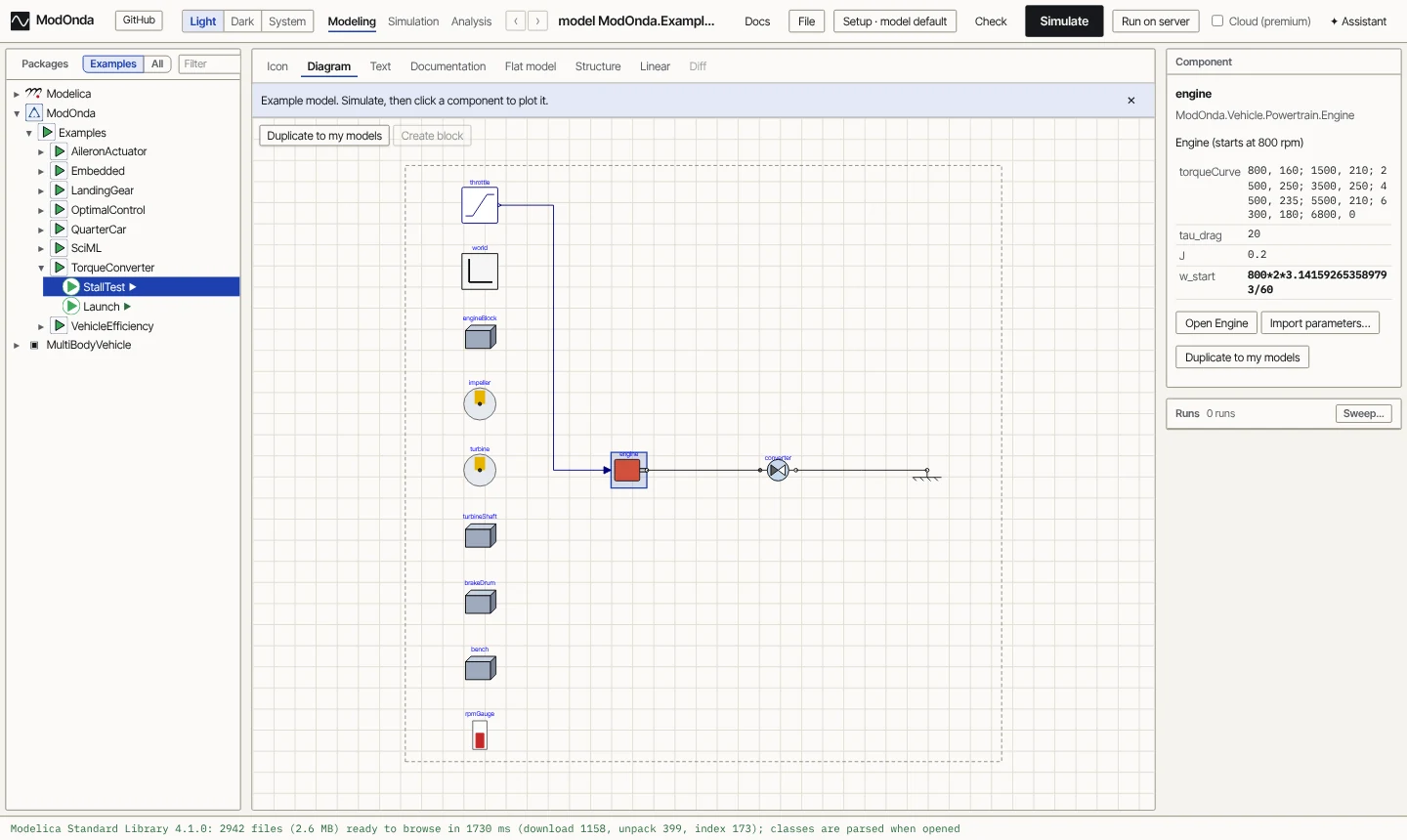
- Pick a model in the Packages tree on the left. Models with a ▶ have an
experimentannotation and can be simulated as they are; tryModOnda.Examples.TorqueConverter.StallTest. - Look at it in one of the eight views: Icon, Diagram, Text, Documentation, Flat model, Structure, Linear or Diff. Click a component in the diagram to see its parameters on the right.
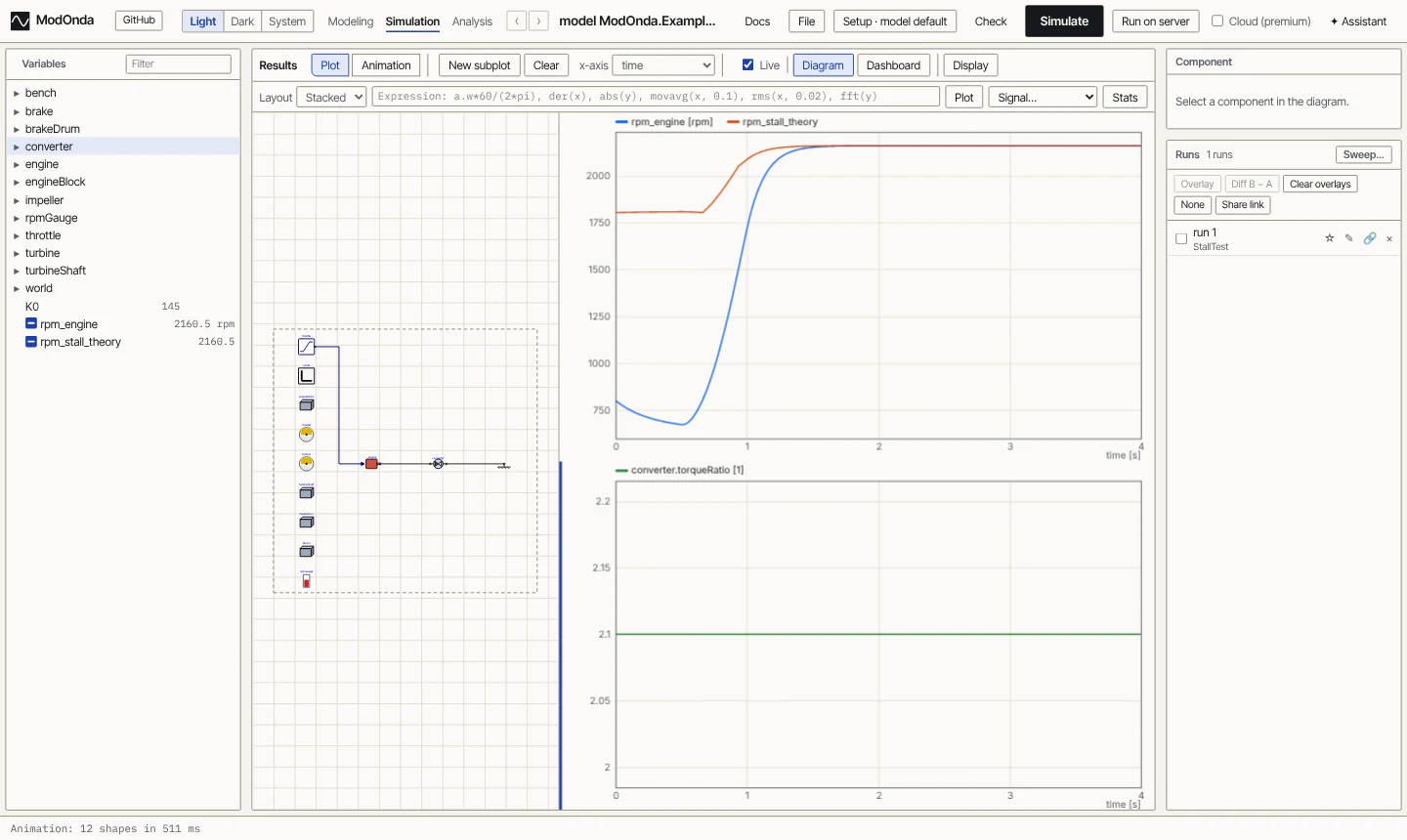
- The header switches among Modeling, Simulation and Analysis. Press ▶ Simulate (or Ctrl+Enter). The page switches to Simulation: the left pane becomes the variable browser, and models with shapes open in Animation.
- Switch to Plot and tick variables to plot them. New subplot adds a plot below, and the x-axis list turns a subplot into a parametric plot.
Every class has its own address: the URL ends in # and the class name, so a link such as
/#Modelica.Electrical.Analog.Examples.ChuaCircuit
opens that model directly, and the browser's Back and Forward buttons (or Alt+← and Alt+→)
walk through the classes you opened.
Your own models open with Open (single files, plus .stl and .obj meshes for
3-D shapes), Folder (a whole folder, such as a library checkout) or Libraries
(a package from the index). Save .zip downloads the open model with the files it needs.
Simulation in the page, or through modonda serve on this computer, stays on the machine.
✦ Assistant sends the text it reads and the numbers it asks for to OpenRouter, and to the provider of the selected model.
Writing a model
ModOnda reads standard Modelica. A first model, saved as Pendulum.mo:
model Pendulum "Nonlinear pendulum with damping"
  parameter Real L = 1 "Length [m]";
  parameter Real g = 9.81;
  parameter Real d = 0.2 "Damping";
  Real phi(start = 0.5, fixed = true) "Angle [rad]";
  Real w(start = 0, fixed = true) "Angular velocity [rad/s]";
equation
  der(phi) = w;
  L^2*der(w) = -g*L*sin(phi) - d*w;
  annotation (experiment(StopTime = 10));
end Pendulum;
In the workbench, Open loads the same file into the package browser. Models that use the bundled library or the MSL need no extra setup.